---
title: "Widgets"
slug: "widgets"
updated: 2026-07-22T12:31:40Z
published: 2026-07-22T12:31:40Z
canonical: "support.dise.com/widgets"
---
> ## Documentation Index
> Fetch the complete documentation index at: https://support.dise.com/llms.txt
> Use this file to discover all available pages before exploring further.
# Widgets
A widget is a locally cached HTML page so the media players don't require constant internet connection.
HTML pages can be hosted and scheduled as a webpage, this requires the media player to have constant internet connection.
#### Additional Features
- Access local files:
- The index.html file can link to files on the local media player. For example, add ' to the widget to display the specified image.
- Query Parameters:
- [Global variables](/dise/docs/global-variables) and [custom settings](/dise/docs/custom-settings) are sent as query parameters so the widget can read any variables set in the CX portal.
## Create a Widget
To upload a widget, it must be packaged into a .zip file. A widget must include a HTML page, manifest and logo image:

The HTML page, manifest and logo files must be in the root of the ZIP file. It's common that when packaging a ZIP, a folder can be created inside the ZIP file which will cause the widget not to play.
#### Manifest
A manifest is required so both the CX portal and media player recognising the ZIP file as a Dise widget:
```json
{
"name": "",
"media_type": "application/x-dise-widget",
"manifest_version": 1,
"start": "",
"version": "",
"description": "",
"thumbnail": ""
"created": "",
"size": ,
"hash": "",
"privileges": ""
}
```
- **n****ame:**
- Name to display in the portal, in content and playlists.
- **media_type:**
- Must be "application / x-dise-widget" for the portal and player to register the ZIP is a Dise widget.
- **manifest_version**
- Must be set to 1.
- **start**
- The filename of the HTML page.
- **thumbnail**
- The filename of a PNG or JPG image used as a thumbnail in the CX portal.
- **version**
- Manage the widget versioning.
- **description**
- A description of the widget.
- **created**
- A timestamp for when the widget was created.
- **size**
- Total size in bytes of the widget.
- **hash**
- A SHA2 hash of the widget.
- **privileges**
- The rights the widget should have in its iframe. These are read by the media player when loading the widget.
- Follows the same format as an iframe's "sandbox" attribute: [https://html.com/attributes/iframe-sandbox/](https://html.com/attributes/iframe-sandbox/).
- Default privileges are: "allow-forms allow-modals allow-pointer-lock allow-popups allow-scripts allow-same-origin".
Example:
```json
{
"name": "MyWebsite",
"media_type": "application/x-dise-widget",
"manifest_version": 1,
"description": "HTML5-application to show internal information",
"start": "info.html",
"thumbnail": "logo.png",
"privileges": "allow-forms allow-modals allow-pointer-lock allow-popups allow-scripts allow-same-origin"
}
```
---
## Upload a Widget
Ensure the widget ZIP is packaged correctly with a manifest included.
1. Navigate to 'Widgets' in the left menu: 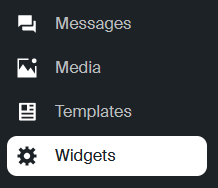🔎︎
2. Drag files into the upload banner or click the upload button: 🔎︎
3. Widgets can be added to folders and shared folders.
---
## Add a Widget to a Playlist
1. Navigate to 'Playlists' in the left menu: 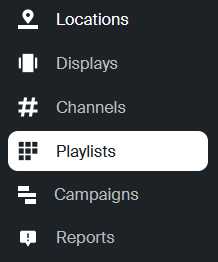🔎︎
2. Select the 'options' arrow in the side panel to select from the widget library:🔎︎
3. Drag and drop one or more widgets from the side panel into the playlist.
## Related
- [CX Portal API](/api.md)
- [Global Variables](/global-variables.md)
- [Dise Methods Library](/dise-methods-library.md)